<?xml version="1.0" encoding="utf-8"?> <!-- Created with Liquid XML Studio (https://www.liquid-technologies.com) --> <bookstore xmlns="https://www.liquid-technologies.com/sample/bookstore" xmlns:xsi="http://www.w3.org/2001/XMLSchema-instance" xsi:schemaLocation="https://www.liquid-technologies.com/sample/bookstore .\BookStore.xsd"> <book price="21.99" publicationdate="2002-05-14" ISBN="0-596-00252-1"> <title>XML Schemas</title> <author> <first-name>Eric</first-name> <last-name>Vlist</last-name> </author> <genre>Reference</genre> </book> <book price="31.99" publicationdate="2003-05-14" ISBN="3-596-00252-1"> <title>Regular Expressions</title> <genre>Reference</genre> </book> <book price="4.99" publicationdate="2008-10-20" ISBN="978-0747596837"> <title>The Graveyard Book</title> <author> <first-name>Neil</first-name> <last-name>Gaiman</last-name> </author> <genre>Horror</genre> </book> <book price="5.99" publicationdate="1999-05-02" ISBN="0-945-16546-1"> <title>The Portable Door</title> <author> <first-name>Tom</first-name> <last-name>Holt</last-name> </author> </book> <book price="6.99" publicationdate="2012-06-19" ISBN="0-062-06775-3)"> <title>The Long Earth</title> <author> <first-name>Terry</first-name> <last-name>Pratchett</last-name> </author> <author> <first-name>Stephen</first-name> <last-name>Baxter</last-name> </author> </book> </bookstore>
How The Generated Code Works
In This Topic
Once you start investigating the data mapper, dragging connectors around and experimenting, it is useful to have an overview of how a transform is executed.
When you execute a transform, Liquid Data Mapper generates the source code, compiles it into a library in memory, and runs it like an executable file.
Optionally, you can create your own library as explained in Generated Data Mapper Code for C#, this is recommended for large data sets as it does not have the overhead of running in the debugger environment, and also for when you want to distribute your mapping as a compiled library.
Some Key points
The generated code uses the following priciples:
- Everything is a sequence
- The transform is target driven
- Sequences passed to Scalar functions produce a dot product (scalar product).
We will now explore these principals in more detail, but first it would be a good idea to ensure that you are familiar with the diagram notation.
Everything is a Sequence
Every connection point output (i.e. a connection point on the right hand side of a component) returns a sequence of values, the sequence can contain 0-n items (the Cardinality property broadly describes the number of values the sequence may contain).
All the items in a sequence are of the same type.
So if you are reading book items from an XML file, you would get a sequence of many book values to pass to he next component in the transform. If you were reading a nullable value from a database you could expect to get an empty sequence or a sequence with a single value.
The transform is target driven
This is important, if you understand this you can easily see how a transform will be evaluated.
All transforms start on the right hand side, and identify the data target (XML Writer, JSON Writer etc.).
- Execution starts with the root connection point input on the data target.
- The data targets connection point inputs are evaluated as follows:
- If the connection point has no connector but has child items that are connected, then an output entry is written for it.
- If the connection point has a connector, then a sequence of values are read from the connector, an output entry is written for each value in the sequence read via the connector.
- Each child connection point is then processed as above.
- The data targets connection point inputs are evaluated as follows:
So far we've brushed over getting values from a connector, so let's look a that in more detail.
The specifics of how the processing is done is component specific, but broadly breaks into 3 component types.
Sequences passed to Scalar functions produce a dot product
A scalar function is something like 'Add', it takes 2 numeric values, and returns a numeric value, if we pass a single value to each input then we get a single result.
However, as we have already said "everything is a sequence", so we can pass a sequence to both the inputs on the 'Add' function.
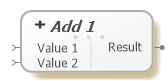
The Pseudocode for this looks like this:
| Pseudocode for calling the 'Add' Function |
Copy Code
|
|---|---|
var Results ForEach (var v1 in SeqConnectedToInput1) ForEach (var v2 in SeqConnectedToInput2) Results.Add(v1 + v2) return Results |
|
You can now see the results of passing sequences of numbers to scalar function:
| Input 1 Values | Input 2 Value | Result | |
|---|---|---|---|
| [2] | [3] | [5] | |
| [1,2] | [20] | [21,22] | |
| [] | [] | [] | |
| [1] | [] | [] | |
| [1,2] | [10,20] | [11,21,12,22] |
Some functions you may find useful if this not the result you require are, First, Last, GetAt, DefaultIfNull
Example Transforms
We will use the following XML data to describe the results from the following transforms:
Sample Source Data
Basic Transform
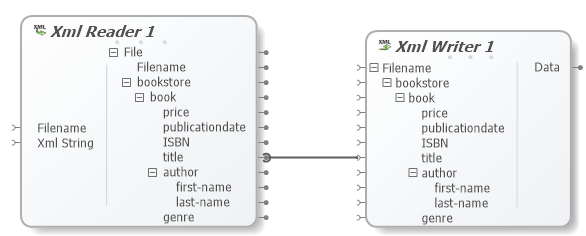
This sample produces the output below. Let's examine how it runs.
- The target component is identified as the right most component, in this case "Xml Writer 1".
- The root input node the 'Filename' in the target component "Xml Writer 1" is evaluated (as its not connected it uses the default filename defined in the component).
- We then move to the next node in the tree, 'bookstore', it has no connection but it contains a connected item (title), so a <bookstore> element is created for it.
- It now looks at the child items and find 'book', again it has no connection, but it contains a connected item (title), so a <book> element is created for it.
- It now looks at the child items of 'book', and finds 'price', this has not connector and contains no connected items so it is ignored, we do the same for 'publicationdate' and 'ISBN'.
- The next child node is 'title'. This has a connector, so we follow this back and find it connects to the 'title' node in "Xml Reader 1".
- In order to get a value from 'title' we look to it parent 'book', and then to its parent 'bookstore'. In effect what we've done is say get be all the 'title's in all the 'book's in all the 'bookstore's. The result is a sequence of titles.
- The "Xml Writer 1" node 'title' then creates a <title> element in the output for each value.
- The next child is 'author' which is ignored as it is not connected, and has not child connectors, 'genre' is also ignored.
- Transform complete.
<bookstore xmlns="https://www.liquid-technologies.com/sample/bookstore">
    <book>
        <title>XML Schemas</title>
        <title>Regular Expressions</title>
        <title>The Graveyard Book</title>
        <title>The Portable Door</title>
        <title>The Long Earth</title>
    </book>
</bookstore>
So as you can see some structure elements where implicitly created (<bookstore> & <book>) and a <title> element was created for each value read from the source XML.
However, all the <title> elements are in the same <book> element.
What we really wanted one <title> per <book>, in order to do this we need define the context.
Introducing context
Context is what stops all the data from the file being returned in one go, it limits our search depth. So let's see an example.
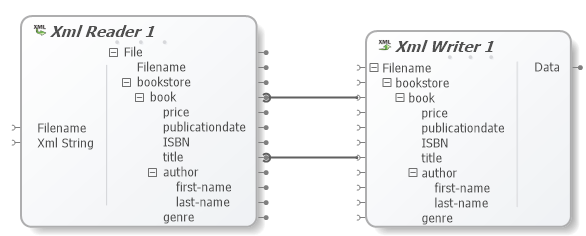
- The target component is identified as the right most component, in this case "Xml Writer 1".
- The root input node the 'Filename' in the target component "Xml Writer 1" is evaluated (as its not connected it uses the default filename defined in the component).
- We then move to the next node in the tree, 'bookstore', it has no connection but it contains a connected item (title), so a <bookstore> element is created for it.
- The next child node is 'book'. This has a connector, so we follow this back and find it connects to the 'book' node in "Xml Reader 1".
- In order to get a value from 'book' on "Xml Reader 1" we look at its parent ('bookstore' on "Xml Reader 1"), so we now return all the 'books' in all the 'bookstores' in "Xml Reader 1".
- The "Xml Writer 1" component then starts processing the 'book' items it was passed from via the connector. It does this one at a time. So for each item it reads it creates a <book> element, it then processes its child nodes for that input value. This is the important bit, it processes its child nodes within the 'context' of the input value it was given i.e. the 'book' from "Xml Reader 1".
- The next child node is 'price', this has no connectors and contains no connected items so it is ignored, we do the same for 'publicationdate' and 'ISBN'.
- The next child node is 'title'. This has a connector, so we follow this back and find it connects to the 'title' node in the "Xml Reader 1".
- In order to get a value from the 'title' node in "Xml Reader 1", we look to it parent 'book' and discover that this is the current context. So we stop there and only return the 'title's that are contained within the current 'book' (in this sample each book only contains 1 title). The result is a sequence of titles (a sequence with only one value). The writer then creates a 'title' element in the output for each value.
- The next child is 'author' which is ignored as it is not connected, and has not child connectors, 'genre' is also ignored.
- We now move to the next 'book' read from "Xml Reader 1" and process that.
- Once we run out of 'book's in the sequence the transform is complete.
<bookstore xmlns="https://www.liquid-technologies.com/sample/bookstore">
    <book>
        <title>XML Schemas</title>
    </book>
    <book>
        <title>Regular Expressions</title>
    </book>
    <book>
        <title>The Graveyard Book</title>
    </book>
    <book>
        <title>The Portable Door</title>
    </book>
    <book>
        <title>The Long Earth</title>
    </book>
</bookstore>
As you can see you now have a <book> element for each <book> in the source data.
Visualizing this for yourself
The transform debugger makes it possible to step throught transform one instruction at a time. This makes is possible to visualize the path it takes as the transform executes, you can also set break points and examine values.
You can start the debugger using the "Start Debugger"  (F5) or the "Debugger Step Into"
  (F11) tool bar buttons.
Reading the Transform desriptions
A transform description is written to the output window when you build the transform. It describes what the transform will do in a kind of pseudo code.
Let's look at the output for this transform.
0001 [0000] : WriteXmlDocument(file:02, data:03)
0002 [0000] :     Constant(.\Slide02.output.xml:String)
0003 [0000] :     WriteXmlNode(writer:01, name:bookstore, value:-)
0004 [0000] :         WriteXmlNode(writer:01, name:book, value:05)
0005 [0000] :             ReadChildItems(source:06, nodeType:book (Node*))               CONTEXT : Transform, Xml Reader 1, File, bookstore, book
0006 [0000] :                 XmlRootNode(xmlDocument:07, nodeType:bookstore (Node))     CONTEXT : Transform, Xml Reader 1, File, bookstore
0007 [0000] :                     XmlFileReader(filename:08)                             CONTEXT : Transform, Xml Reader 1, File
0008 [0000] :                         Constant(.\Books.xml:String)
0009 [0000] :                 WriteXmlNode(writer:01, name:title, value:10)
0010 [0000] :                     ReadChildItems(source:11, nodeType:title (String))     CONTEXT : Transform, Xml Reader 1, File, bookstore, book, title
0011 [0000] :                         ReferenceTo(05)                                    CONTEXT : Transform, Xml Reader 1, File, bookstore, book
Converted into a more readable form.
0001 [0000] : For every value in 02 create an XML Document for writing step 03 describes the data in the file
0002 [0000] :     String Value ".\Slide02.output.xml"
0003 [0000] :     Write an Xml Element called <bookstore>
0004 [0000] :         For every value in 05 Write an Xml Element called <book>
0005 [0000] :             All the 'book' items in 06
0006 [0000] :                 All the 'bookstore' items in 07
0007 [0000] :                     Open an XML File for every value in 08
0008 [0000] :                         String value ".\Books.xml"
0009 [0000] :                 For every value in 10 Write an Xml Element called <title>
0010 [0000] :                     All the 'title' items in 11
0011 [0000] :                         The current 'book' value from step 5